
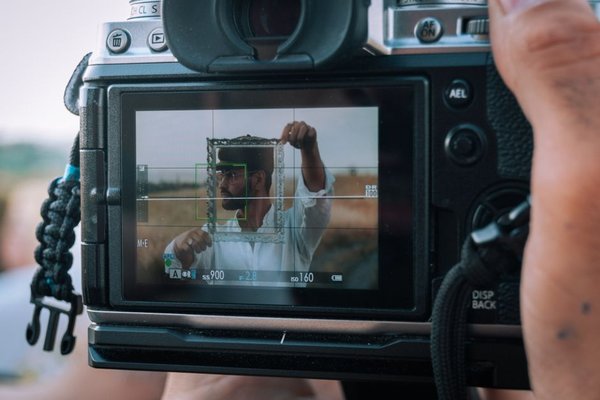
Two cameras of the same model can produce different results if they run different firmware versions. Firmware is the built-in software that coordinates a camera’s hardware, menus, and features. Manufacturers update it to fix errors, improve compatibility, or occasionally introduce new capabilities. This camera firmware update guide explains when an update is worthwhile and how to install one without unnecessary risk.
What Changes When Camera Firmware Is Updated?
A camera firmware update may adjust autofocus behavior, wireless connections, lens communication, video functions, or overall reliability. Exactly what changes depends on the model and release. An update that fixes one person’s lens problem might make no noticeable difference to another photographer.
Firmware is different from the photo-editing applications on your computer. Nor does new firmware automatically improve image quality or turn an older camera into a newer model. Look for specific claims in the manufacturer’s release notes rather than assuming every update is a performance upgrade.
Read the Release Notes Before Deciding
Visit the official support page for the exact camera model. Compare the available update with your installed camera firmware version, then read the changes, prerequisites, and warnings. Some releases alter menu options or require compatible versions of companion applications.
Consider the timing as well as the benefits. If a fix addresses a fault you experience, updating may be sensible. If your camera works reliably and you have an important assignment tomorrow, a nonessential update can wait until you have time to test it.
A Real-World Example: The Night Before a Wedding
Suppose you discover firmware promising improved lens communication on Friday, just before a Saturday wedding. You use the affected lens but have never experienced a problem. Instead of updating under pressure, note the release and schedule installation after the event. Then test the exact camera-and-lens combination you use professionally. Planned maintenance is safer than introducing an unfamiliar change before a paid shoot.
Check Your Model and Installed Version
Confirm the model designation on the camera body or settings screen; similar names can refer to incompatible products. Open the setup menu and find Firmware Version, Version, or a similarly named option. The menu location varies.
Some cameras display separate versions for the body, lens, flash, or adapter. Record the relevant numbers. Never install a file simply because it was made for a camera that looks similar to yours.
Prepare Before You Start
Firmware installation can fail if power or the connection is interrupted. Fully charge the battery or use an approved external power source where the manufacturer permits it. Back up your photos and videos before touching a card that might need formatting.
Download firmware only from the manufacturer’s official support site, or through an approved app. Check compatibility, read the full installation procedure, and save custom settings if an update might reset them. Photographing important menu screens is a simple precaution.
Choose a quiet moment when you will not need the camera. If instructions require a freshly formatted memory card, verify your backup first: formatting erases the card’s existing files.
Common Firmware Installation Methods
Memory Card Installation
Many cameras accept firmware copied to a compatible memory card. Typically, you download the file using a computer, extract it if instructed, place it in the specified location, insert the card, and launch the update through the camera menu. The required location and file format vary by model. Never rename files or assume every camera uses the same steps.
Computer and USB Installation
Other cameras use a manufacturer-supplied computer utility and a USB connection. Follow requirements for operating system, cable, and connection mode. Prevent the computer from sleeping, and do not disconnect the cable until the process finishes. A memory-card tutorial is not a substitute for USB-specific instructions.
Mobile App Installation
Some compatible models can receive an update through an official phone app. The app may transfer a firmware file to the camera or its card before installation. Keep devices adequately charged and follow the supported connection procedure. Wireless updates are not available on every camera.
During the Update: Leave the Camera Alone
Follow the manufacturer’s on-screen instructions and avoid pressing controls while firmware is being written. Do not remove the battery, card, or cable, or turn off the camera. A progress indicator may seem slow without being stuck. Wait for the documented completion message or restart sequence rather than guessing when it is safe to intervene.
Verify the Installation and Test Important Functions
After completion, check the firmware menu again to confirm the expected version. Review custom settings for changes. Take test photos, inspect files on the card, and try video recording or wireless transfer if those functions matter to you.
Test the accessories mentioned in the release notes, especially lenses and adapters. Routine camera battery care, memory card maintenance, and autofocus troubleshooting are useful companion checks when assessing camera reliability.
How to Handle Update Errors
If an error appears, find its explanation in the model-specific support instructions. Avoid experimenting with unofficial downloads or repeatedly interrupting the installation. If the camera starts normally, check the displayed version before following an authorized recovery procedure.
If the camera will not power on or remains stuck during writing, seek manufacturer or authorized-service guidance. After an apparently successful update, unexpected behavior may also come from reset settings or an outdated phone app, not necessarily damaged firmware.
Can You Roll Back to Older Firmware?
Sometimes there is no supported way back. Manufacturers explicitly prohibit downgrades for certain models and releases, while recovery options vary elsewhere. Do not assume an older download can safely reverse an update. Check the official support instructions before attempting a rollback.
Frequently Asked Questions
Do I need to install every camera firmware update?
No. Read what each version fixes or adds. Prioritize changes relevant to your camera, and leave time to test the result before important work.
Will updating camera software erase my photos?
Firmware updates do not ordinarily target stored images, but memory-card formatting during preparation will erase files. Always back up your photos first.
How long does firmware installation take?
There is no universal duration. It depends on the model and method. Follow the manufacturer’s estimate, and allow extra time for preparation and testing.
Can I update without a computer?
Some cameras support official app-based updates. Others need a computer to download or transfer files. Check the methods approved for your exact model.
A Sensible Firmware Maintenance Habit
Check for updates periodically, but do not install them blindly. Read the release notes, confirm compatibility, protect your files, and follow the official instructions without interruption. Checking the version and testing your usual equipment afterward makes each update a controlled maintenance task rather than a gamble.