
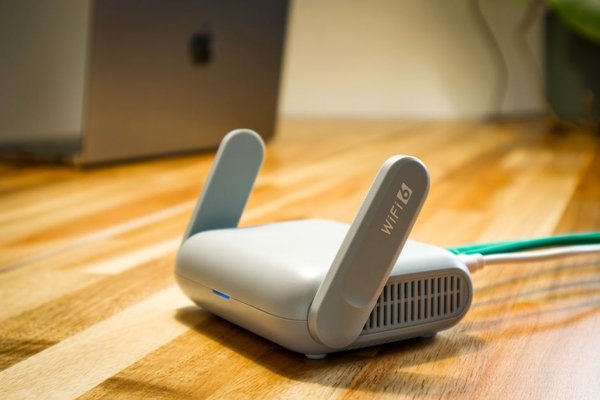
Your Wi-Fi drops during a video call, websites stop loading, and suddenly everyone at home is asking what happened. Knowing how to reboot a router is a useful first step: it can clear a temporary glitch without erasing your network settings. But restarting everything at random can waste time when the real problem is elsewhere.
First, check whether one device is affected or every connected device. If a single laptop has trouble while your phone works normally, try reconnecting that laptop before disrupting the whole household.
How to reboot a router safely
A normal reboot turns the router off and starts it again. It keeps your saved Wi-Fi name, password, and other settings. For most home routers, a simple power cycle works well.
Step 1: Prepare for a brief interruption
Let others know the internet will disconnect. Pause important video calls, downloads, or online games. If your router is installing a firmware update and warns against removing power, allow that update to finish before restarting it.
Step 2: Switch off the power
Press the router’s power button, if available. Otherwise, unplug its power adapter. Do not pull out Ethernet cables, a coaxial connection, or a delicate fiber-optic cable; there is no need to disturb the wiring.
Step 3: Wait about 30 seconds
Leaving the router off for roughly 30 seconds is a practical default. Some manufacturers specify different intervals, so follow your device’s instructions when available. If your equipment uses a backup battery, check its manual to confirm that it actually shuts down.
Step 4: Turn it on and wait
Restore power and allow several minutes for startup and reconnection. Watch the status lights, but remember their meanings and colors vary by model. Consult the manufacturer’s guide if a warning light remains on.
Step 5: Confirm that it worked
Connect a phone or computer to Wi-Fi and open a few websites. Try the app that failed earlier. If you have an Ethernet-connected computer, test it too. This helps reveal whether the trouble is with Wi-Fi or the wider internet connection.
Can you restart a router without unplugging it?
Often, yes. Many router apps and administration pages have a Restart or Reboot command under system or device settings. This is convenient if your router is difficult to reach. Use only the official app or local address documented by the manufacturer.
A software reboot usually preserves your settings just like a power-button restart. Your connection to the app will temporarily disappear while the router starts up again. If its interface has frozen completely, turning the device off and back on may be the better option.
What if your modem and router are separate?
Some households have a combined modem-router gateway. Others use a separate modem or fiber terminal connected to a Wi-Fi router. If you need to restart the entire home network, turn both devices off, then bring the modem online first.
Wait the interval specified by your equipment provider, restore power to the modem, and let it establish its connection. That can take several minutes. Only then switch on the router and wait for Wi-Fi and internet access to return. With a combined gateway, restart that single unit.
For example, your television and laptop both show a Wi-Fi connection but cannot reach websites. Rebooting the router alone may work, but a complete restart in modem-then-router order also gives the upstream internet connection a chance to recover. Leave fiber and service cables attached.
When does rebooting actually help?
A restart is worth trying when a normally reliable connection suddenly fails across several devices, the router becomes unusually sluggish, or the network behaves strangely after a brief power interruption. Restarting can clear temporary software problems and re-establish connections.
It is not a cure for every issue. If the internet provider has an outage, your bedroom has consistently weak Wi-Fi, or only one older phone loses its connection, a router reboot may change little. One careful restart is a diagnostic step, not proof that the router was the cause.
Reboot versus factory reset: a crucial distinction
A reboot and a factory reset are not interchangeable. Rebooting preserves your configuration. Factory resetting can erase customized Wi-Fi credentials, parental controls, and connection settings, leaving you to set up the router again.
Do not press and hold the small recessed Reset button when you simply want to restart router service. Use the power button, power adapter, or a menu option specifically labeled Restart or Reboot. If you are considering a factory reset, check the model’s instructions and save any settings you may need.
What to do if the reboot does not work
Separate Wi-Fi problems from internet problems
If an Ethernet connection works but Wi-Fi does not, test from a room close to the router and try another wireless device. Weak coverage or interference may be responsible. For recurring wireless dropouts, see our guide to fixing Wi-Fi that keeps disconnecting.
Check the service connection
Make sure the modem or gateway is powered, its cables are secure, and its lights do not indicate a fault. Use mobile data to check your internet provider’s outage page. Rebooting home equipment cannot repair an outage outside your home.
Watch for repeat failures
If you need to power cycle router equipment every evening, look for a pattern. Excess heat, poor ventilation, an unstable power adapter, or old firmware might be involved. Keep the router ventilated, use its correct power adapter, and follow official firmware-update guidance.
If the problem mainly affects distant rooms, our guide to the best router placement offers more relevant solutions. If all devices feel slow, our home internet speed testing guide can help you compare wired and wireless performance.
When basic troubleshooting fails, contact your provider or router manufacturer. Explain when failures happen, whether wired devices work, and which indicator lights appear. These details help support staff identify a service issue or equipment fault.
Frequently asked questions
How long should I unplug my router?
About 30 seconds is a useful general guideline. Follow the manufacturer’s recommendation for your model, then allow a few minutes for startup and reconnection after you restore power.
Will rebooting change my Wi-Fi password?
No. A standard reboot keeps your saved Wi-Fi name and password. A factory reset is different and can return the router to default settings.
How often should I reboot my router?
There is no universal schedule. Restart it when a problem makes that worthwhile or when its manufacturer recommends doing so. Frequent necessary reboots are a sign to investigate the underlying cause.
Can restarting fix slow internet?
Sometimes, if a temporary software or connection issue is slowing things down. It cannot increase your subscribed speed, overcome poor Wi-Fi coverage, or fix an internet provider’s outage.
The practical takeaway
To reboot a router safely, power it off, wait roughly 30 seconds, power it back on, and give it time to reconnect. If you have a separate modem, bring that online before the router. Avoid the factory-reset button, and test the connection afterward. If problems repeatedly return, move beyond restarting and find the actual cause.