
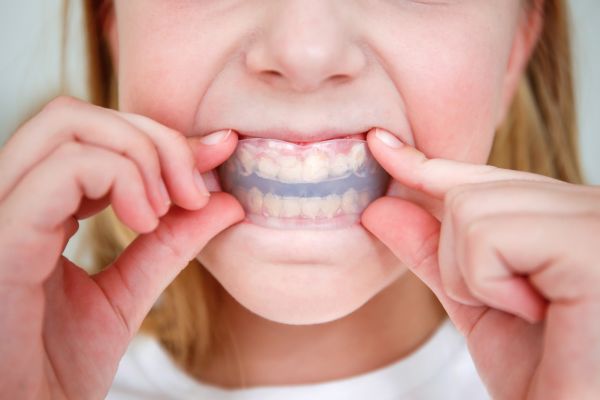
The question that sends someone to these tools is usually a version of: can I stand looking at myself for the next eighteen months? Reasonable to want answered before a consultation, and a photo filter answers part of it.
What it cannot answer is anything clinical. A braces simulator edits an image. It does not examine your bite, it does not know whether your case needs extractions or elastics or a palate expander, and it cannot predict where any tooth will end up. No filter here models tooth movement — the teeth in the output are the teeth in your photo, with hardware drawn over them. Treat the result as a wardrobe preview, not a forecast of what an orthodontist can achieve. Media.io says as much on its own page: the simulator is not a medical tool and should supplement rather than replace a consultation, and Fotor calls its results visual guidance only.
With that settled, the choice comes down to what you are trying to look at.
Five versions of the same question, and where each one leads. Only the last one leaves the software entirely.
If you want to see metal brackets
The easy case, and every tool here manages it. Metal is high-contrast hardware against enamel: square brackets, a wire crossing them, colored elastics if you ask. The generator has an obvious thing to draw and an obvious place to put it, which is why metal is the default almost everywhere. Media.io supports only traditional metal, and notes ceramic and clear aligner options may come later.
The simplest version of this is a tool with no settings at all.
Which is what Overchat AI’s is. Upload a clear photo, press Try braces, wait about thirty seconds, compare and download in HD without a watermark. The page is specific about what stays put: face shape, skin, expression, hair and background are left as they were, with only the mouth area edited. It draws individual brackets and archwire rather than pasting a sticker. Two limits from its own FAQ: the Braces Filter needs visible teeth, and it shows classic metal and nothing else — a narrower promise than most here, and a more honest one —
— narrow because it is one tool among many. Overchat AI puts 150+ purpose-built tools for image, video, audio and text behind a single login, drawing on GPT, Claude, Gemini, Grok, Kimi and Qwen, on web, iOS and Android, for 350,000+ users. The filter itself is free; Pro costs $14.99 for a month or $59.99 for twelve of them, and that yearly figure lands near one month of ChatGPT Plus at $20, Claude Pro at $20 and Google AI Pro at $19.99 combined.
Screenshot: overchat.ai/ai-tools/braces-filter, September 2026
If you want to compare metal against ceramic
Ceramic brackets are tooth-colored, so how much less they show depends on your enamel shade — which is precisely the variable a filter has to guess. Expect the preview to flatter ceramic slightly.
LightX offers metal, ceramic, self-ligating, lingual and clear aligners, takes JPG or PNG, and auto-adjusts bracket size to the face so it holds up on angled or distant shots. It runs on web, iOS and Android, gives free daily credits on sign-up, and states it does not store your data. The catch is the sign-up itself, plus a credit ceiling once the daily allowance is gone.
Fotor splits the styles into metal (visible, classic), ceramic (less noticeable) and invisible (subtle and minimal). You brush the teeth area, add braces by text prompt, optionally whiten, then export at 4K; uploaded files are deleted within 24 hours. It asks for proper lighting, a front angle and an open mouth, and says plainly that dim light, a closed mouth or a blurry photo will degrade the result.
Screenshot: fotor.com/features/braces-filter, September 2026
If you want to see clear aligners
Here the preview is least useful, for an interesting reason: aligners are meant to be hard to see. A faithful render of a clear tray looks nearly identical to the original photo, so a tool that produces an obvious difference is overdoing it.
VEED handles metal, ceramic, clear aligners and custom band colors from a written instruction, and can animate a before-and-after into a short video. It works from a front-facing portrait in good light. Its costs are credit-based and vary by which model you pick, and the page does not state a free allowance.
insMind uses a brush-plus-prompt flow and covers metal, ceramic, Invisalign-style clear trays, rainbow bands and novelty variants. Upload, mark the teeth, describe the style, download — free, with sign-up optional. It asks for good lighting and does not publish size or resolution limits.
YouCam Perfect takes the same route through its AI Replace feature: paint over the teeth, type “metal braces” or “invisible braces”, apply. Metal, ceramic, lingual and clear aligners are all supported, on iOS, Android and a browser editor. The online version starts with five free credits and charges one credit per regeneration, which adds up quickly when you are comparing four styles.
The three appearances people compare, what each puts in front of a camera, and the specific place each preview stops being reliable.
If you are showing a nervous child
A one-button tool beats a prompt editor here, because the point is the child’s face on the screen, not your prompt-writing. Overchat AI’s FAQ notes exactly this use: seeing themselves beforehand makes the fitting less intimidating. Pokecut also works well for it — upload a selfie, type “wear braces”, download or share. It takes JPEG, JPG, PNG, WebP and BMP, covers metallic, ceramic and invisible styles, and gives daily credits with sign-up optional. It does not publish watermark or resolution details, which is the trade for how little it asks of you.
The decision, in one table
| What you want to see on your teeth | Simulator that fits | What it gives you |
| Metal only, and you want it over with | Overchat AI Braces Filter | One button, ~30 seconds, HD, no watermark, no sign-up prompt |
| Metal vs ceramic vs aligners, side by side | LightX | Five styles selectable, plus iOS and Android apps |
| You want to whiten and preview in one pass | Fotor | Brush, prompt, whiten, export at 4K; files deleted in 24 hours |
| Band colors for the next appointment | VEED or insMind | Free-text prompts handle colors and novelty styles |
| Turning the preview into a short video | VEED | Image-to-video for before-and-after clips |
| Editing on a phone you already use | YouCam Perfect | AI Replace on iOS and Android; five free credits online |
| Fewest steps for a child | Pokecut | Upload, short prompt, download; five input formats |
| Just curious what metal looks like | Media.io | Free, no subscription, states plainly it is not a medical tool |
The four-step flow shared by Fotor, insMind, YouCam Perfect and Media.io. Brushing sloppily past the lips is the usual reason a result looks smeared.
What no braces filter can answer
If the question is whether your teeth can be straightened, how long it would take, or what your smile would look like afterward, close the browser. None of these eight simulate movement. They draw hardware onto teeth in their current positions, which means the version of you wearing metal in the output still has the same crowding, the same gap, the same rotation. Clinicians work from scans, x-rays and a physical exam, and outcome simulations that do exist come from that data rather than from a selfie.
Two other cases where a filter will not help: if your teeth are not visible in the photo, the tools have nothing to bracket, and Overchat AI’s FAQ says so directly; and if you are weighing cost, timeline or whether aligners are even suitable for your case, no image answers that.
What to pick
Curious about metal and nothing else: use the one-button option. Weighing ceramic against metal: use LightX or Fotor so you can switch styles without re-uploading, and discount the ceramic render slightly. Considering aligners: run the preview, expect it to look nearly unchanged, and take that as the honest answer. Showing a child: pick whichever tool needs the fewest taps. And in every case, the picture is where the conversation starts, not where it ends.